User guide
Follow these steps in order to go from a new account to a printed grocery list. Each step shows what you'll see. If something doesn't go as expected, see Troubleshooting at the end.
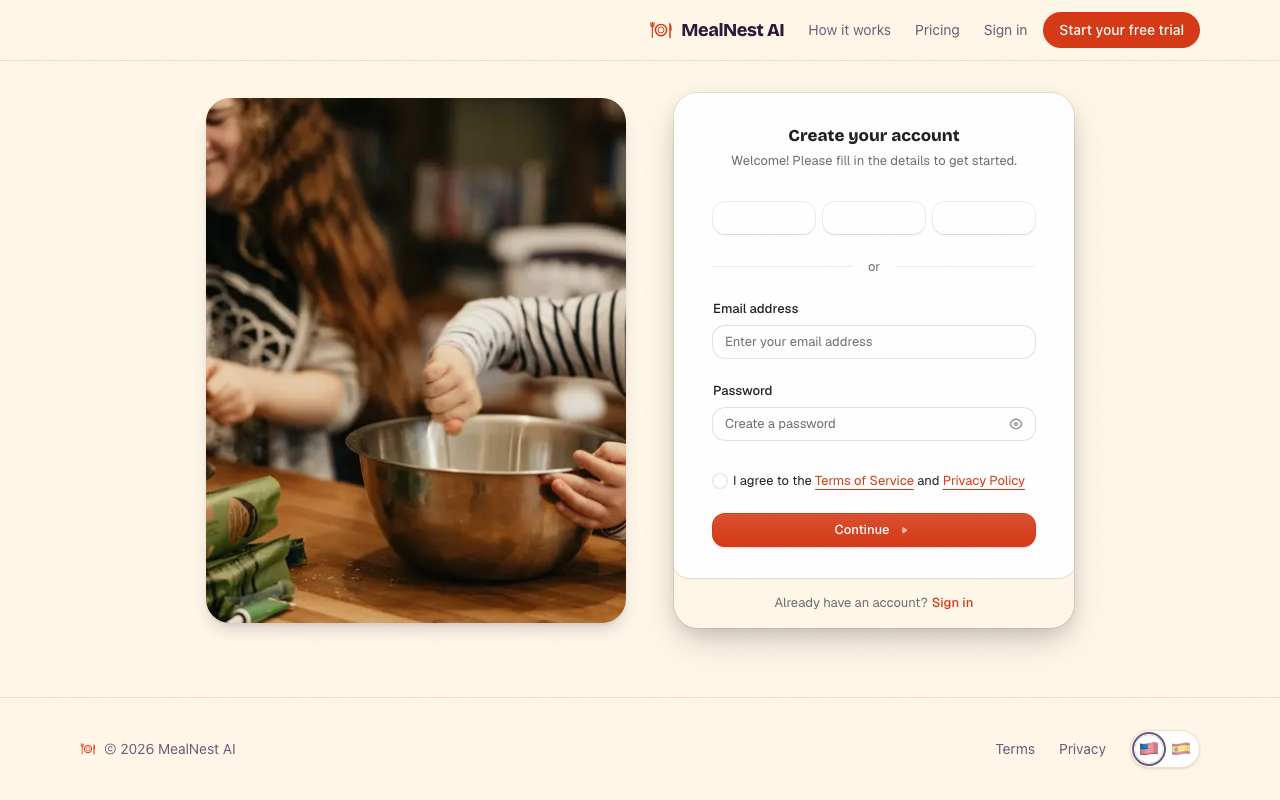
1Create your account
Select Get started on the home page. Sign up with your email address and a password, or continue with Google or Apple.
- If you sign up with email, we send you a code. Enter it to verify your email address and finish creating your account.
- Next time, select Sign in and use the same email or the same Google or Apple account.
2Add your family
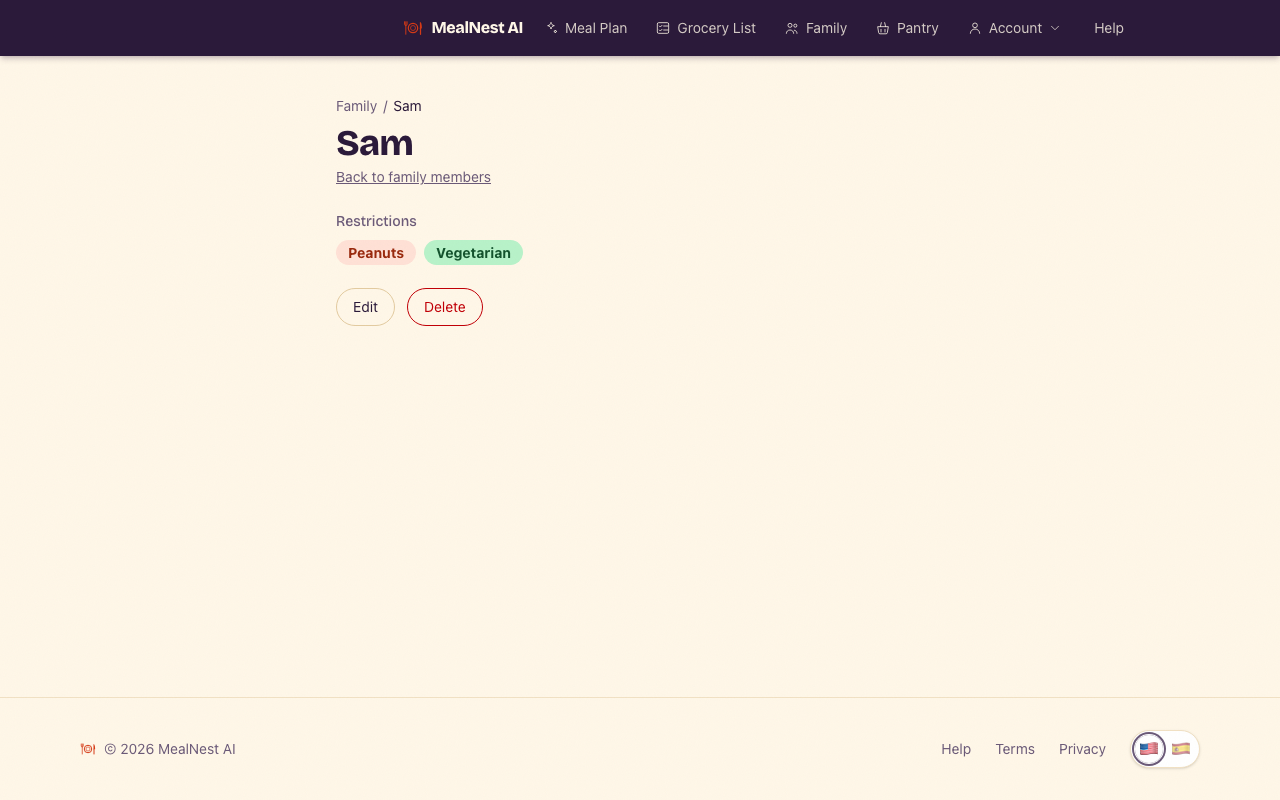
Go to Family. Enter a name (up to 50 characters), check the restrictions that apply to that person, and select Add family member. To change someone later, open their name and select Edit.
- Allergies (the EU's 14 allergens: milk, eggs, fish, crustacean shellfish, tree nuts, peanuts, wheat, soybeans, sesame, celery, mustard, lupin, sulphites and molluscs) are hard rules: every meal in your plan is checked against them. You can also type up to 5 other allergies per person; those are checked by ingredient name and by AI, which is less certain than the check of the listed allergens.
- Diets (vegetarian, vegan, gluten-free, dairy-free, kosher, halal) are followed too; when only some of your family follow a diet, they get their own version of a meal.
- Basic plans meals for up to 2 family members and Premium for up to 5. If you have more members saved than your plan covers, everyone stays saved and you choose who new meal plans are for.
- MealNest AI doesn't give medical advice and can't guarantee a meal is safe for a medical condition. It checks ingredient names, not brands, "may contain" labels or cross-contact, so always check each product's label and a recipe's ingredients for your family's needs.
3Fill your pantry
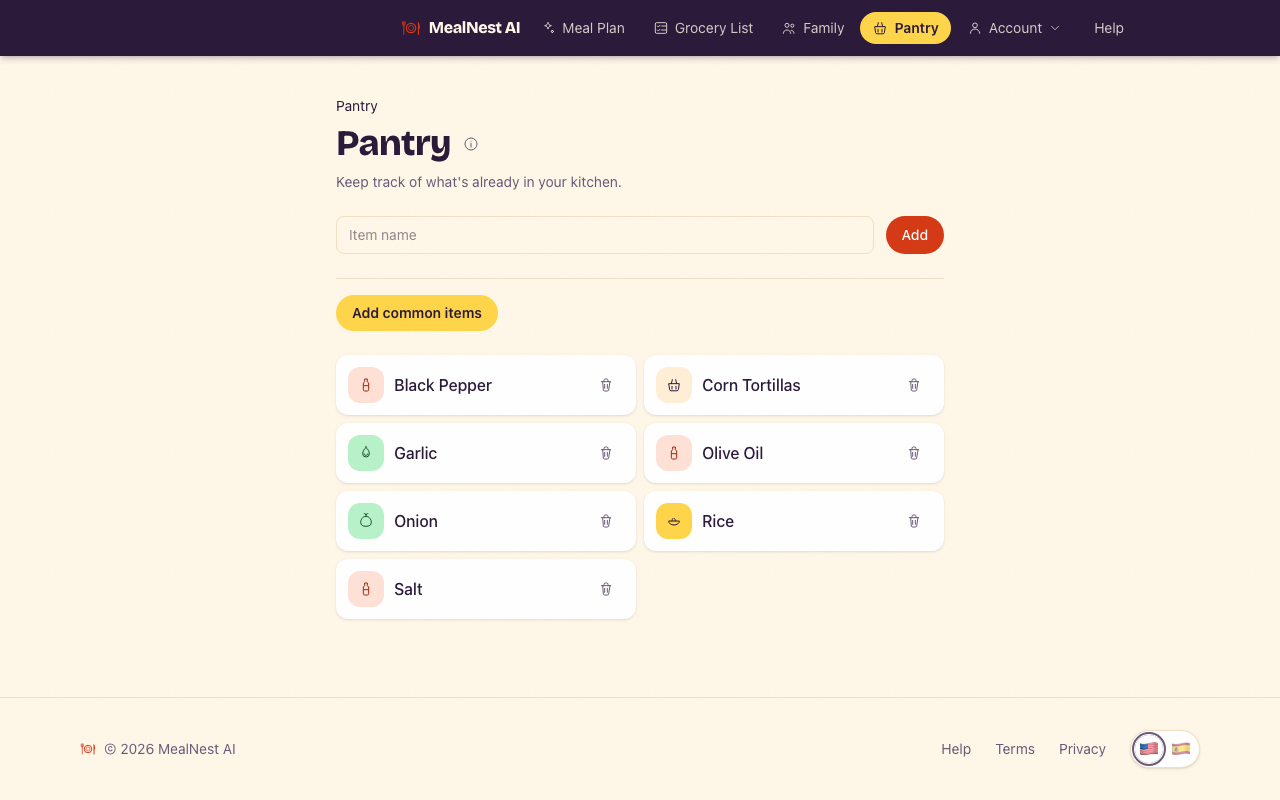
Go to Pantry and add what you already have at home. Your meal plan prefers these ingredients, and they're left off your grocery list.
- Type an item's name and select Add. As you type, matching common items are suggested.
- Select Add common items to pick several of 60 everyday items at once, grouped by category.
- To remove an item, select Remove next to it and confirm.
- Your pantry holds up to 100 items, with names up to 50 characters. Items are listed alphabetically.
4Generate your meal plan
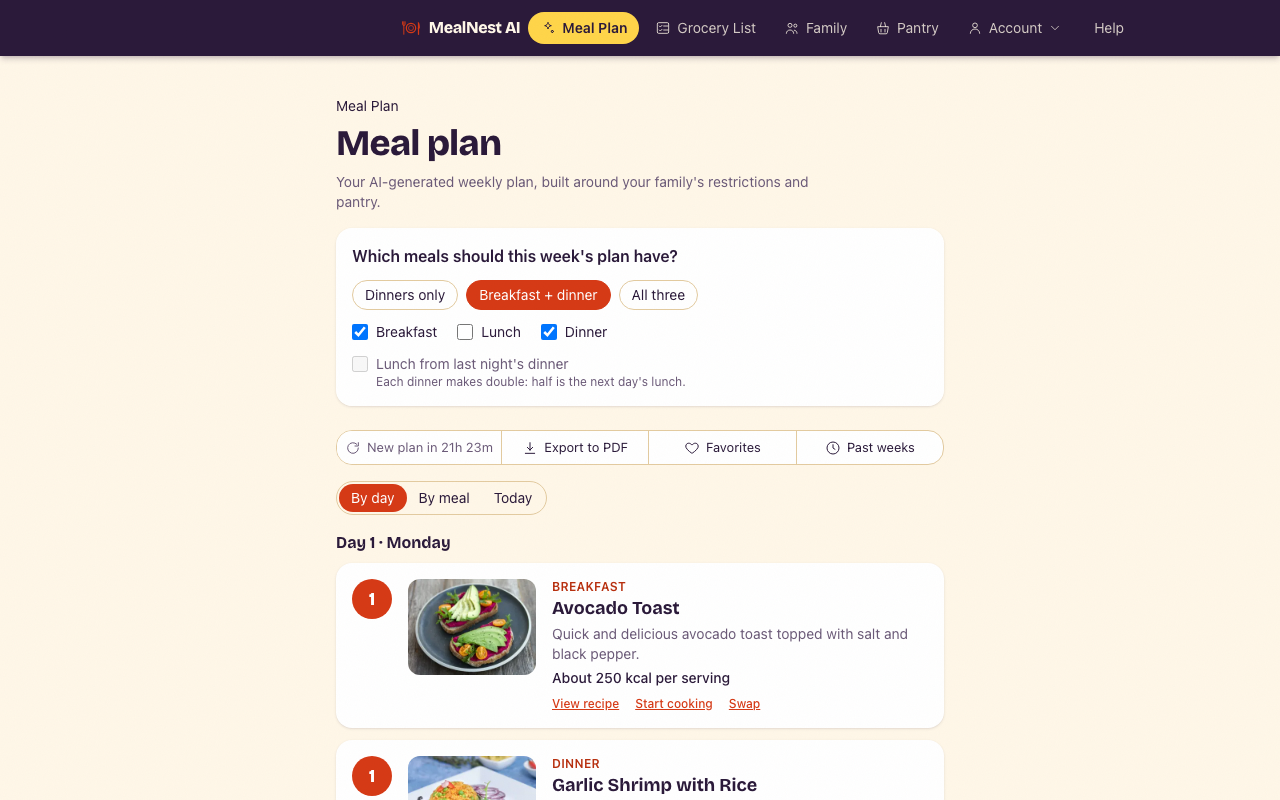
Go to Meal Plan and select Generate my meal plan. MealNest AI builds a week of meals around your family's restrictions and your pantry.
- It usually takes 30 to 60 seconds. You can leave the page and come back; the plan keeps generating.
- If it takes longer than usual, or doesn't finish, see Troubleshooting.
- Each meal shows an estimate of the calories in one serving. It is a rough guide, not exact nutrition data.
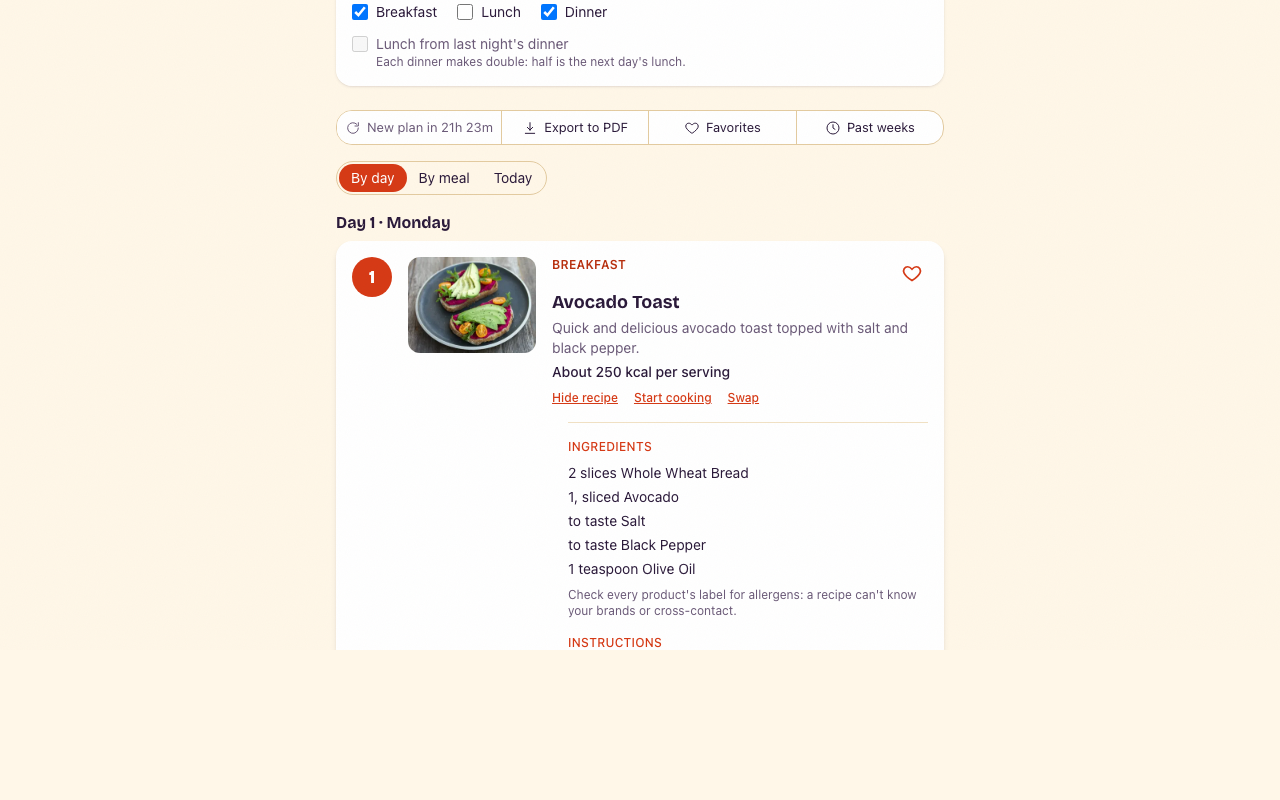
- Day 1 is the day the plan was made. Choose how to see the week at the top of the plan: By day, By meal or Today. Your choice is kept on every device.
5Read the recipes
Each day's card shows the meal's name and a short description. Select View recipe to see the ingredients and the steps.
- When some of your family follow a diet, the card can include a version of the meal for them, labeled with the diet (for example, "Vegetarian version").
6Get a new plan
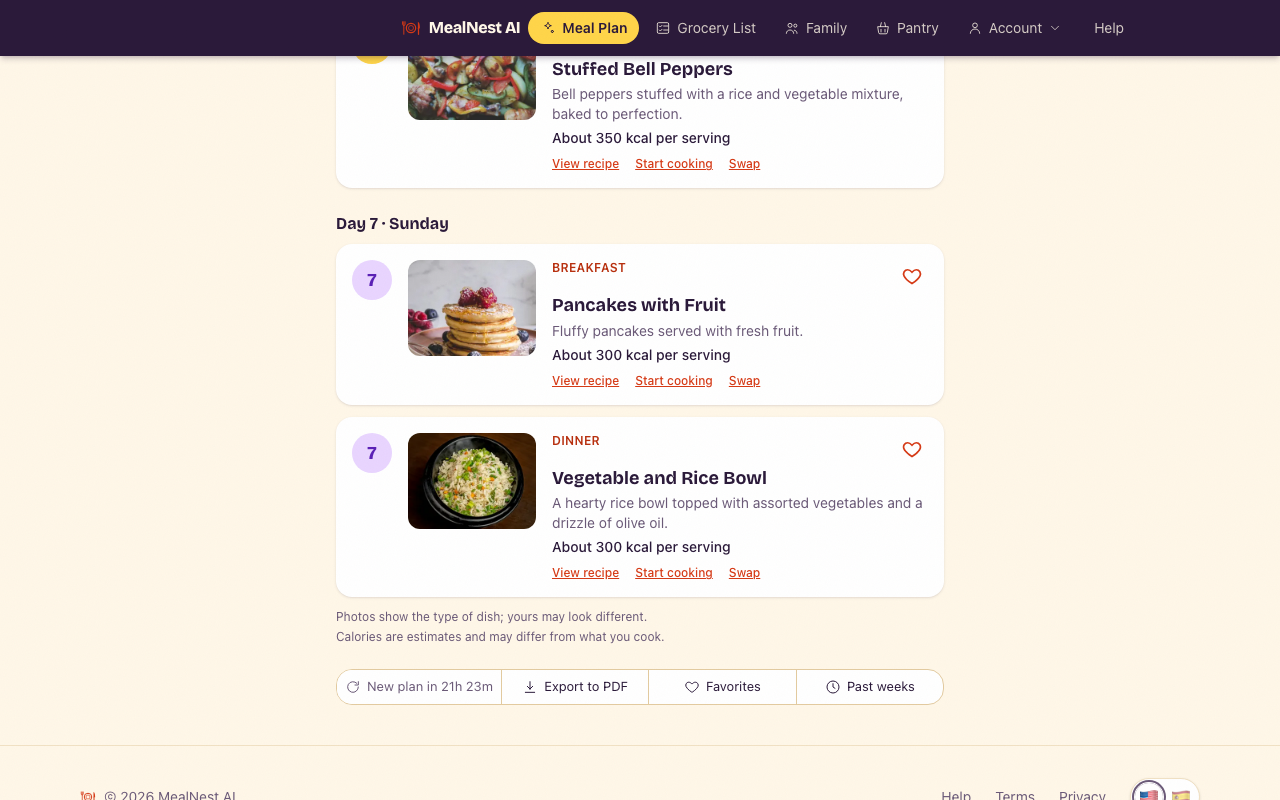
Select Regenerate, above or below your meals on the Meal Plan page, to replace your plan with a new one, built from your family and pantry as they are now. The previous plan isn't kept.
- On Basic you can get a new plan every 7 days; on Premium and during the free trial, once a day. Until then, the button shows how long is left.
- Changed your family or pantry? They're used the next time you generate a plan.
7Check your grocery list
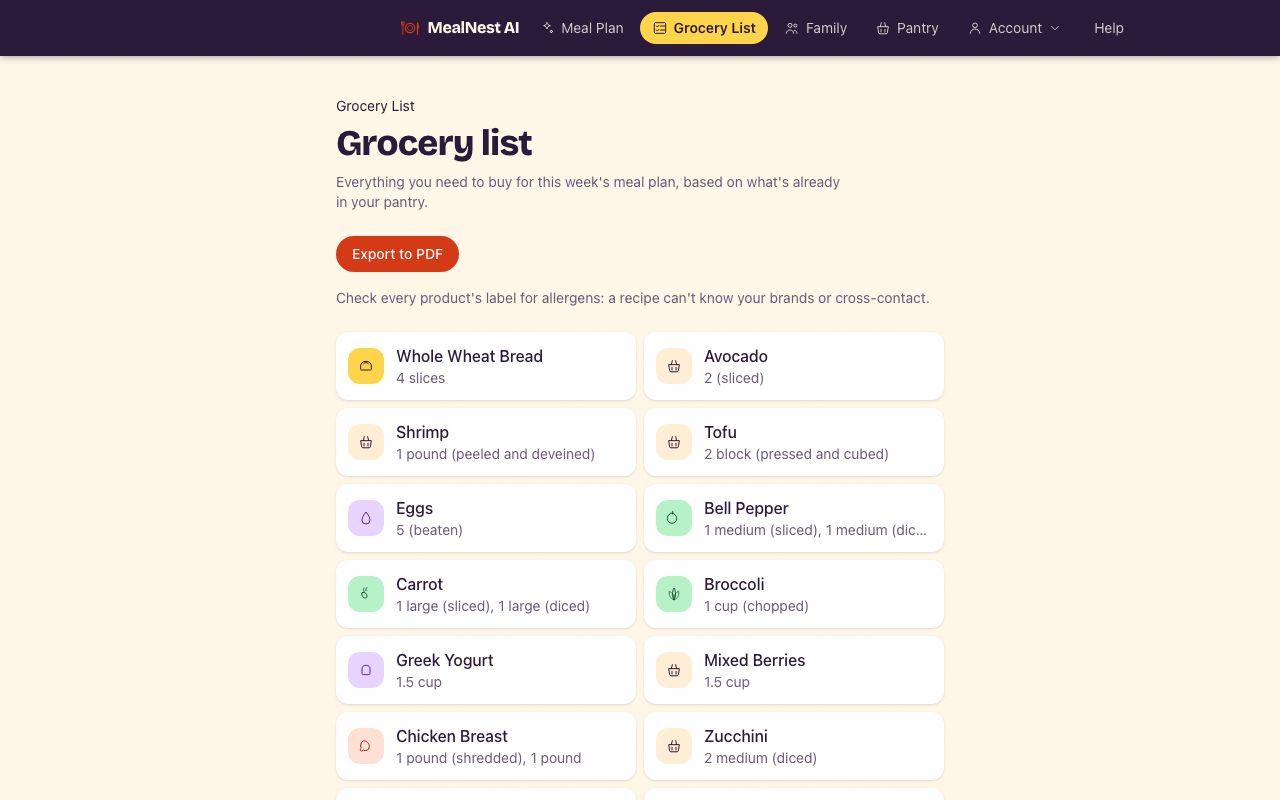
Go to Grocery List to see everything this week's meals need, with the quantities from each recipe.
- Anything in your pantry is left off. If everything is already in your pantry, the list tells you there's nothing to buy.
8Print it or save it as a PDF
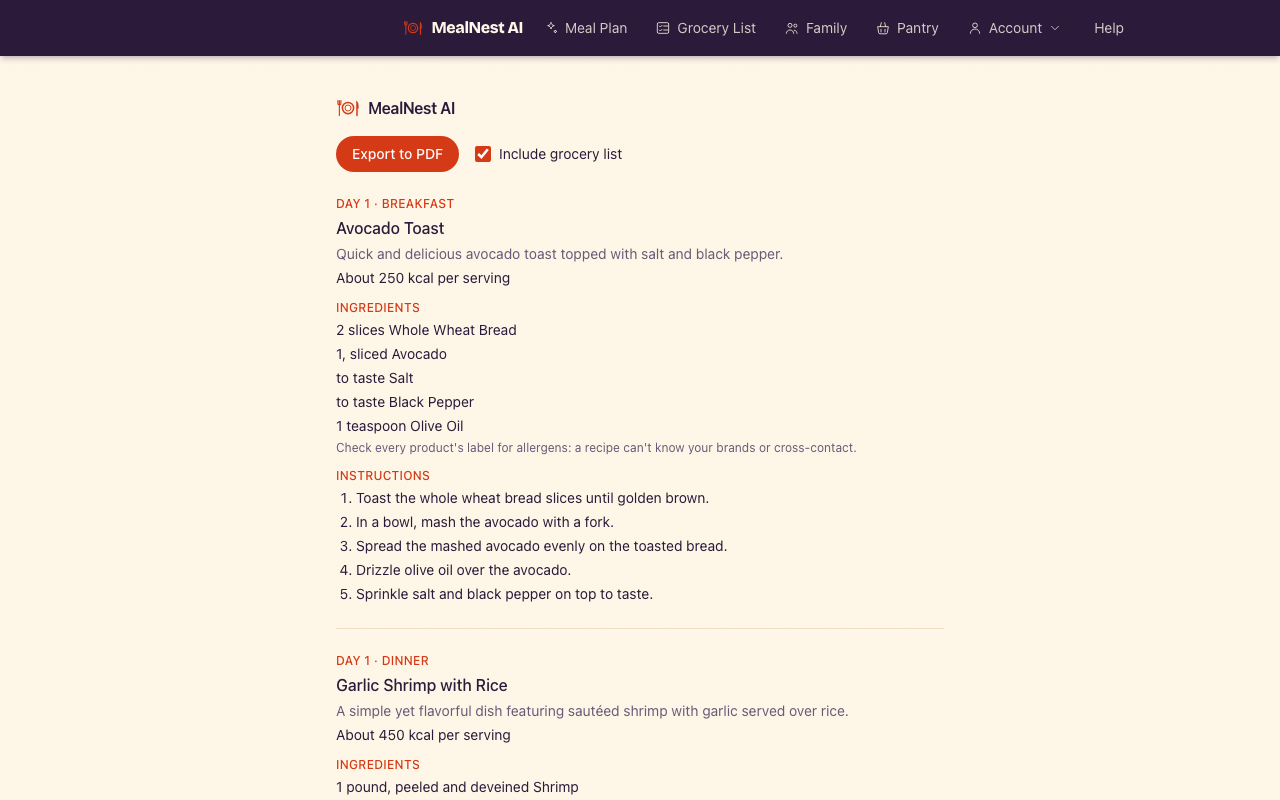
Select Export to PDF below your meals on the Meal Plan page to print the whole week's recipes. On the page that opens, check Include grocery list to add the list at the end, then select Export to PDF. To print only the grocery list, select Export to PDF on the Grocery List page, then Export to PDF again.
- Your browser's print window opens. Choose a printer, or choose Save as PDF to keep a copy.
9Switch the language
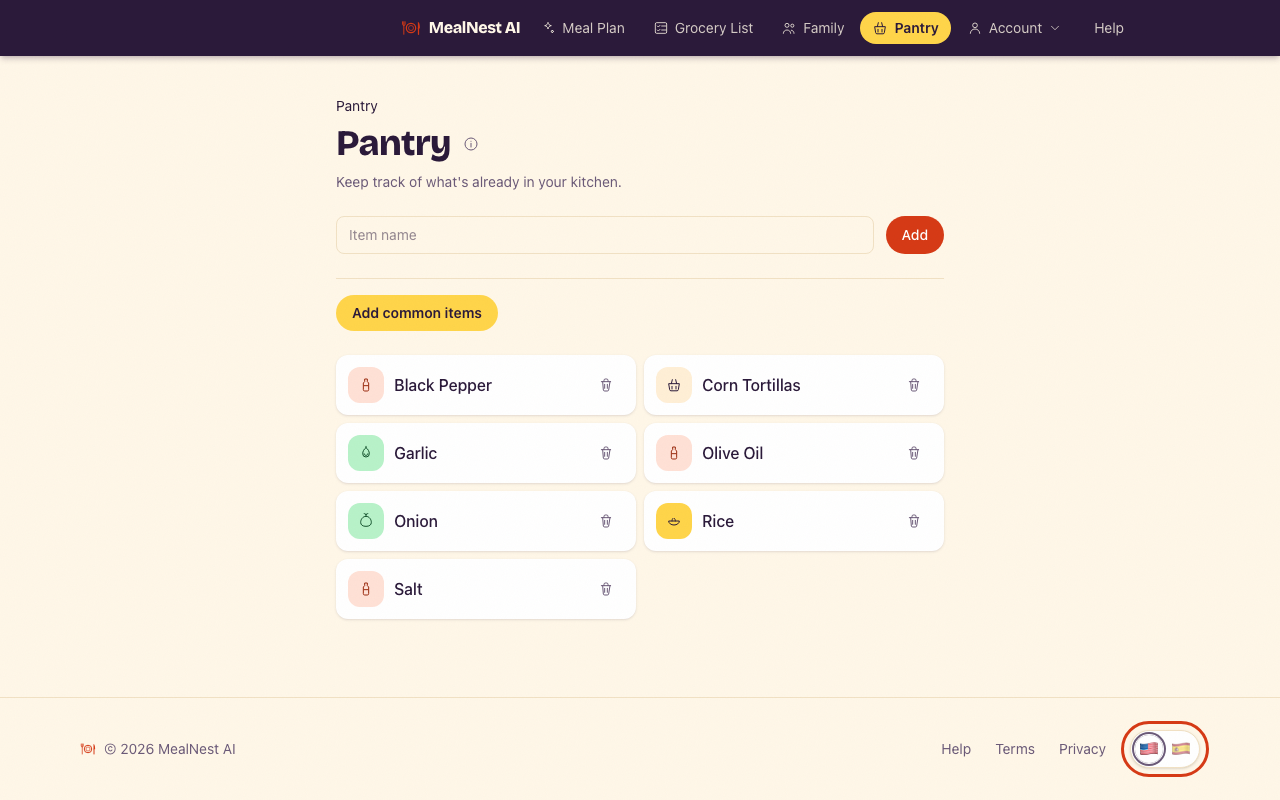
Use the flags at the bottom of any page to switch between English and Spanish. Your choice is saved to your account.
- A meal plan stays in the language it was generated in. Generate a new plan to get recipes in the other language.
- Pantry items you added from the common items switch language too; items you typed stay as you wrote them.
10Manage your account
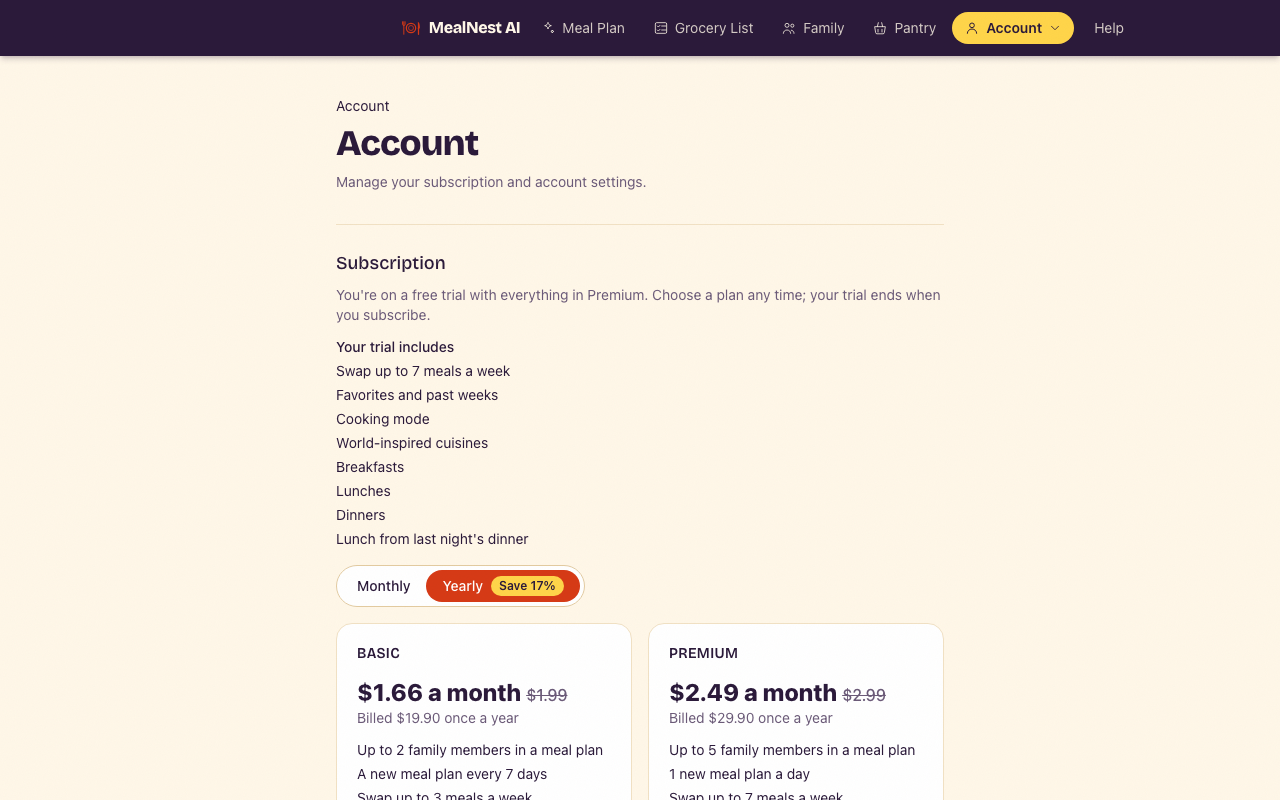
Open Account from the menu at the top. You'll see your plan and its limits, a link to the Help Center, Sign-in settings and the option to delete your account. During your 14-day free trial you choose Basic or Premium here, billed monthly or yearly. Once you've subscribed, select Manage subscription to change or cancel your plan.
- In Sign-in settings, select Manage sign-in settings to change your email address or password, connect Google or Apple, or see the devices where you're signed in.
- To sign out, open the Account menu at the top and select Sign out.
- To delete your account, select Delete my account and then Confirm delete. This permanently deletes your account and your data, and can't be undone.
Features on some plans
These depend on your plan; your Account page shows yours.
- Swap one meal: tap Swap on a day for a different meal on that day only, checked against everyone's allergies too. It doesn't change when you can get a new plan.
- Favorites and past weeks: tap the heart to save a meal, and open Past weeks to see your plans from the last year. Either can be put on a day of this week with "Use this meal again".
- Cooking mode: tap Start cooking for one step at a time in large text, with a timer on each step that names a time. When a timer ends, an alarm rings until you tap OK: the speaker next to your timers turns the sound on or off, and you can pick the sound under Timer alarm on your Account page. The screen stays on where your browser allows it.
- World-inspired cuisines: pick a few cuisines on the meal plan page, and your next plans and swaps take their flavors, with ingredients from a normal supermarket.
- Breakfasts: before you ask for a plan, choose which meals this week has. Breakfasts are quick on weekdays and can take a little longer on the weekend.
- Lunches: choose Lunch with this week's meals for a lunch every day, including ones that pack well to take with you.
- Dinners: a dinner for each day of the week, the meal every plan started with.
- Lunch from last night's dinner: with Lunch and Dinner chosen, turn it on and each dinner makes double, so half is the next day's lunch. Day 1 gets its own lunch, and the grocery list counts the doubled amounts.
Troubleshooting
What you might see, what it means, and what to do.
Your plan is taking longer than usual
This is taking longer than usual. Your meal plan is still being generated…
Some plans take more than a minute and a half, more so with breakfasts or lunches too, and when many families ask at the same time, yours may first wait in line: the page then says how many plans are ahead of yours. Nothing is wrong: your plan starts by itself, and the page updates when it's ready. You can leave and come back.
Your plan didn't finish
Your meal plan didn't finish generating. Please try again.
Something went wrong while generating your plan. Please try again.
Generating stopped before the plan was complete. Select Try again on the Meal Plan page. This doesn't count as a new plan, so you don't have to wait.
Not every restriction could be met
We couldn't find a full week of meals that avoids every restriction on record. Try adjusting your family's restrictions or pantry, then try again.
With all the restrictions in your family, a full week of meals couldn't be found. Check that each person's restrictions are the ones they need and add a few pantry items that fit them, then select Try again. You don't have to wait: this doesn't count as a new plan.
Regeneration isn't available yet
Regeneration isn't available yet
Basic allows a new meal plan every 7 days; Premium and the free trial, 1 a day. The button shows how long is left; you can keep using your current plan until then.
Your pantry is full
Your pantry is full (100 items). Remove an item to add another.
The pantry holds up to 100 items. Remove items you no longer have, then add new ones.
You can't add another family member
You've reached your plan's family member limit. Upgrade to add more.
Basic covers 2 family members and Premium 5. To plan for someone else instead, open a member and edit their name and restrictions.
You're asked to choose family members before a new plan
You have more family members saved than your plan covers.
You have more family members saved than your plan covers. Go to Family and choose who new meal plans are for. Everyone stays saved; the restrictions of the members you leave out are not applied to new plans.
You can't make changes or get a new plan
Your free trial or subscription has ended. Everything you saved is still here.
Choose a plan to make changes or get a new meal plan.
Your free trial or subscription has ended. Everything you saved is still there to read, print and export. Open Account and choose a plan to continue.
A page couldn't load or refresh
We couldn't load this page.
We couldn't refresh this. What you see may be out of date.
Usually a connection problem. Check your internet connection and select Try again, or reload the page. Your data isn't lost.